How to add APEX to your iPhone Home Screen
APEX doesn't need an App Store download. Safari can save it to your Home Screen, where it opens full screen like any other app. It takes about 30 seconds.
Step 1
Open APEX in Safari and tap the more button. On iOS 18 or earlier, tap Share instead.
Open Safari, go to https://verismo-apex.com, then tap ••• beside the address bar.
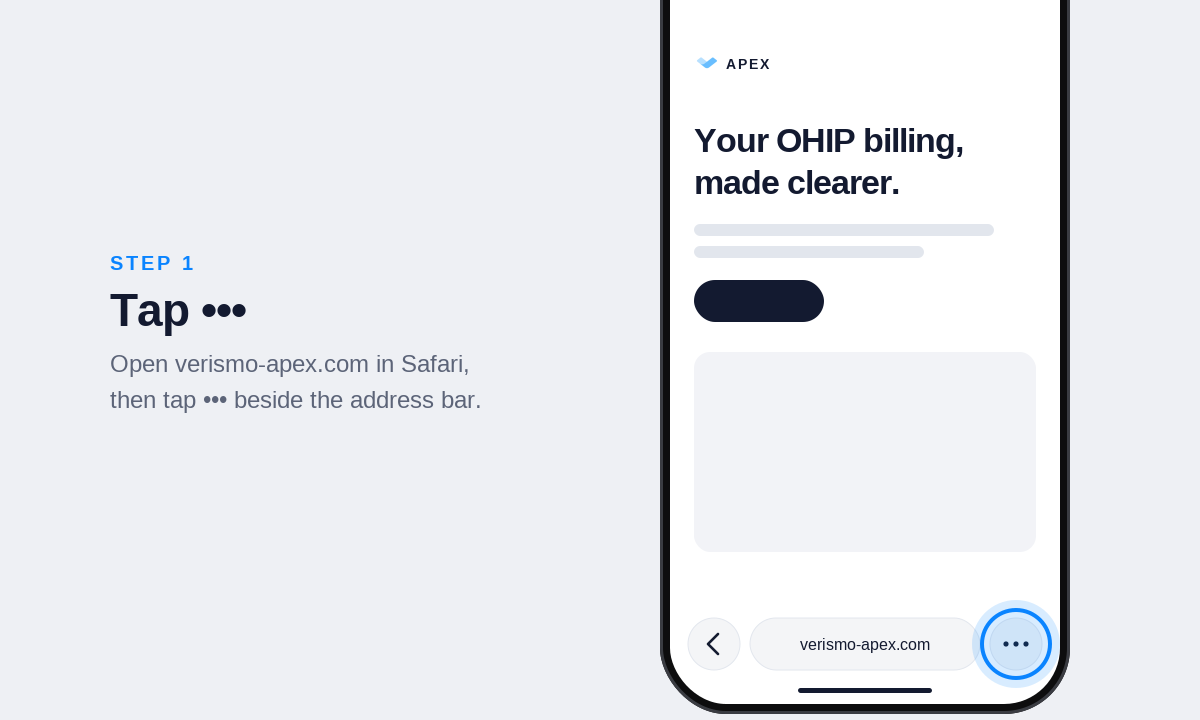
On iOS 18 or earlier, tap the Share button in the toolbar instead and skip to step 3.
Step 2
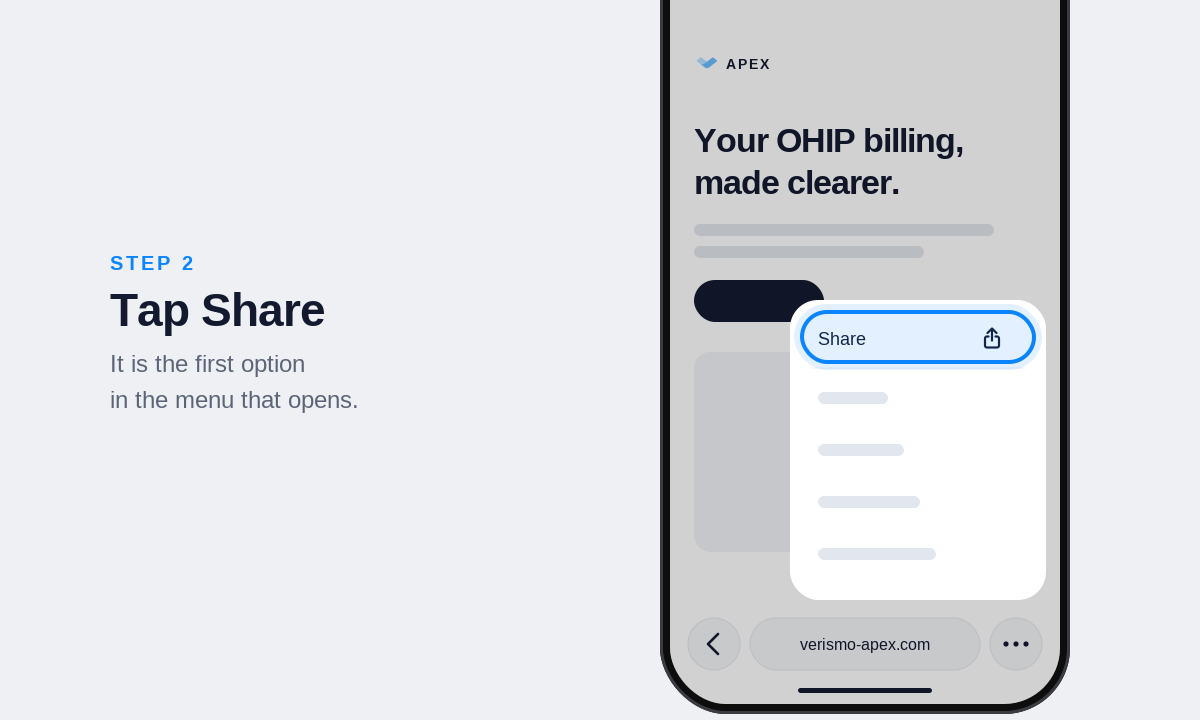
Tap Share in the menu that opens. It is the first option in the menu.
Tap Share in the menu that opens.
Step 3
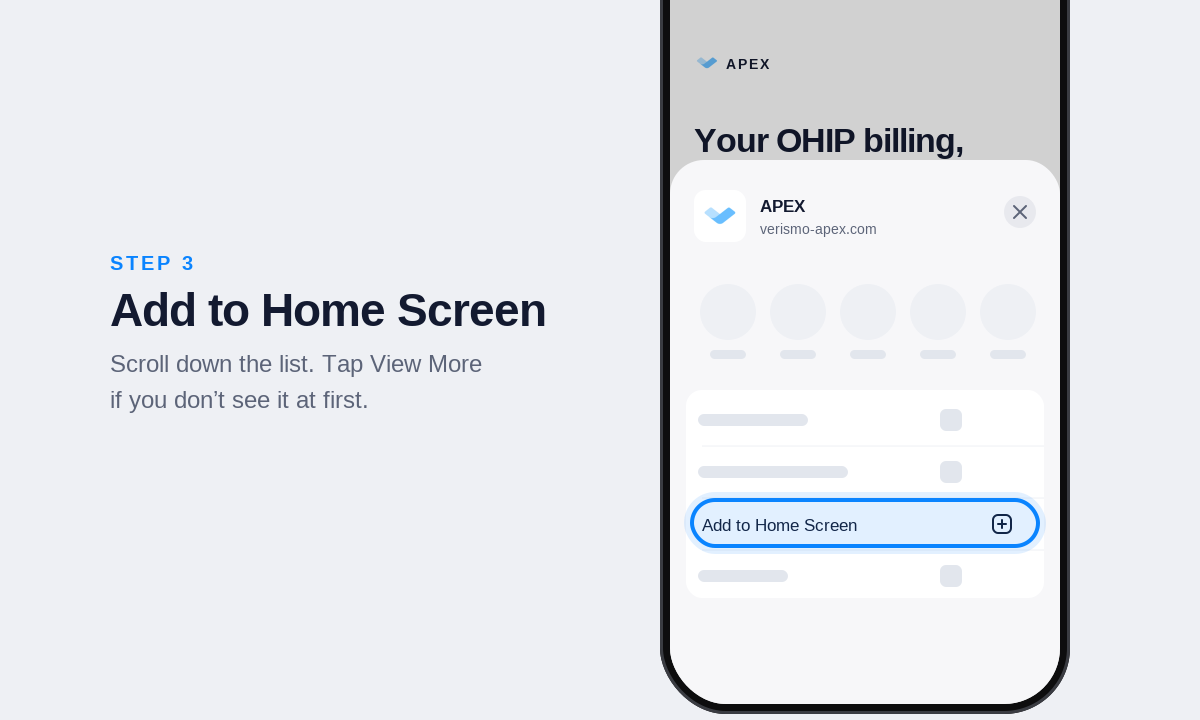
Tap Add to Home Screen. If you don't see it, tap View More.
Scroll down the list and tap Add to Home Screen. If you don't see it, tap View More.
Step 4
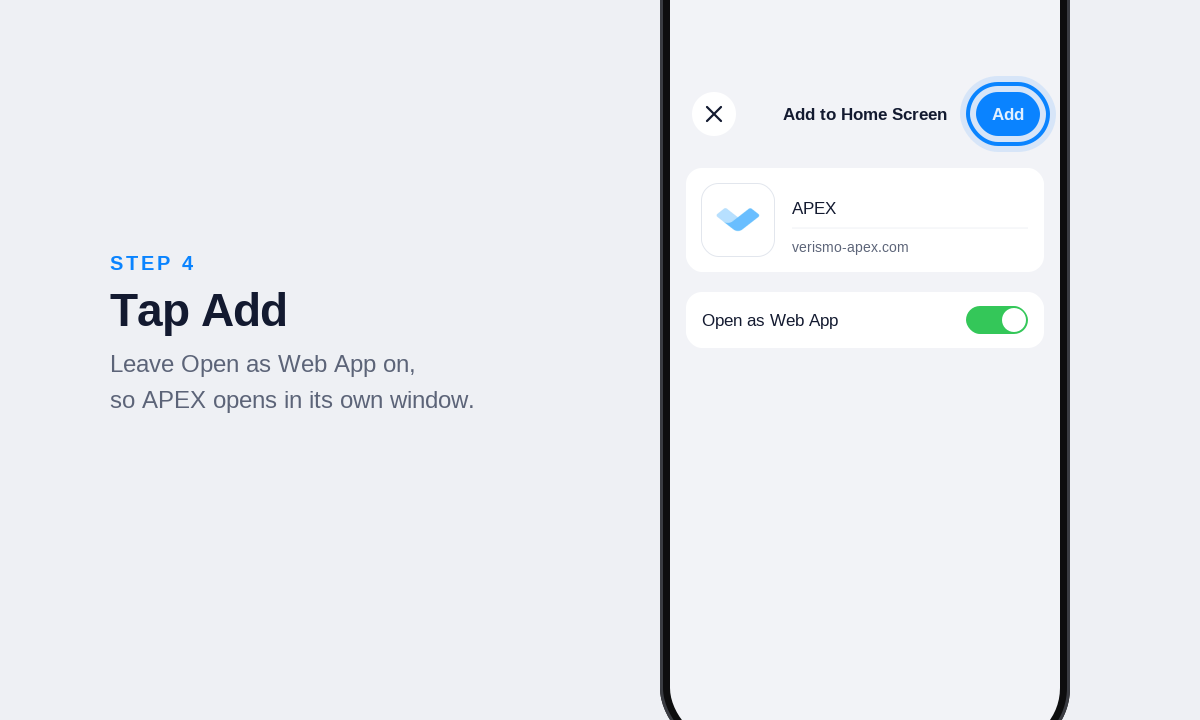
Leave Open as Web App on, then tap Add. APEX then opens without Safari's address bar.
Leave Open as Web App on, then tap Add. With it on, APEX opens in its own window without Safari's address bar.
Step 5
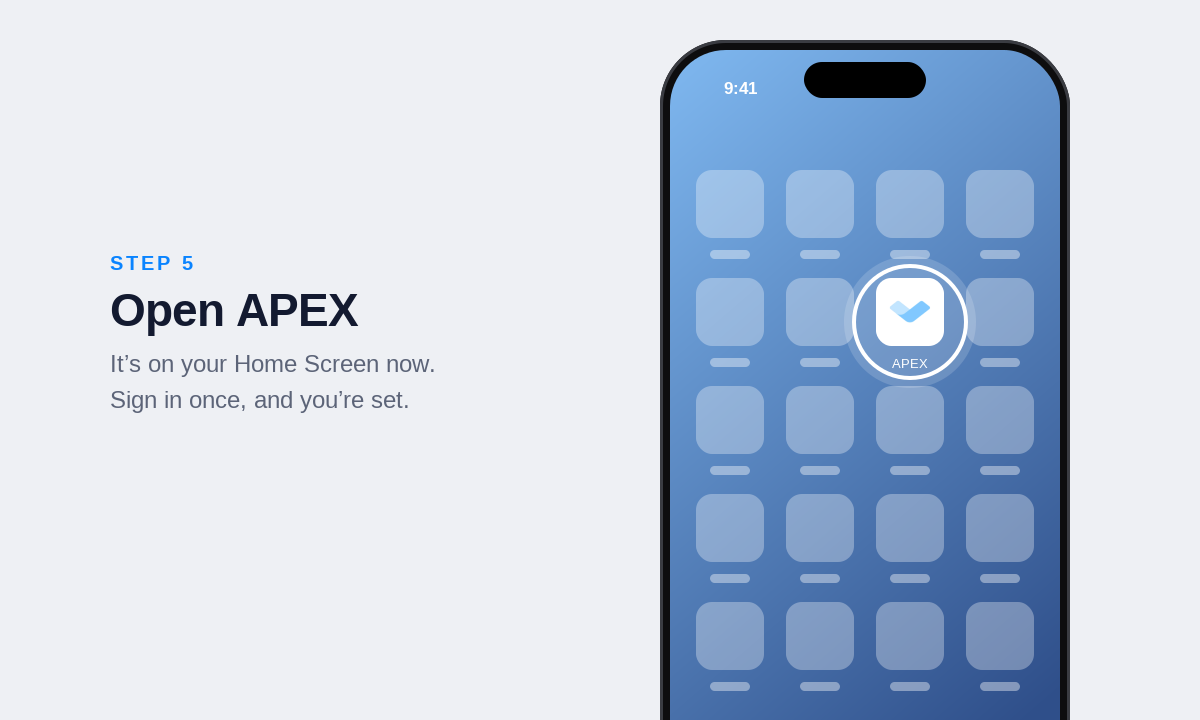
Tap the APEX icon to open it. Sign in once the first time you open it.
Tap the APEX icon to open it. It keeps its own sign-in, separate from Safari, so sign in once the first time you open it.
On iPad
The steps are the same in Safari on iPad. Without the more button, tap Share and go to step 3.
The steps are the same in Safari on iPad. If you don't see •••, tap the Share button at the top of the screen and continue from step 3.
APEX offers every physician or group a unique, transparent overview over their billing records.